Panel Functions
Cycle
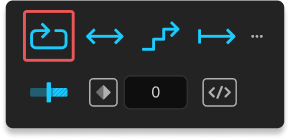
Click to apply a 'Cycle' loop. These are loops that will repeat the animation from the beginning.
Note
This is the default loop type, so no parameter is needed in the loopIn() or loopOut() expression.
Ping Pong
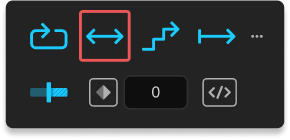
Click to apply a 'Ping Pong' loop. These are loops that will run in reverse before repeating from the beginning.
Offset
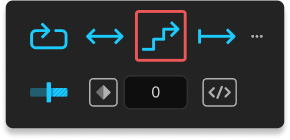
Click to apply an 'Offset' loop. These are loops that will increment in value each time they repeat.
Continue
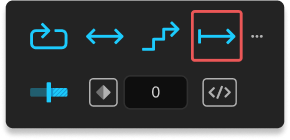
Click to apply a 'Continue' loop. These are loops that will continue the movement of the animation at the speed of the last keyframe.
Time Remap
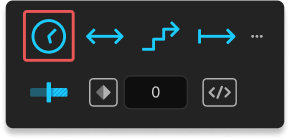
Alt/Option-click this button to apply time remapping to a layer without a loop expression. This is useful for when you've trimmed a layer and want to quickly create Time Remap keyframes at the In and Out points of the layer.
Change Loop Direction
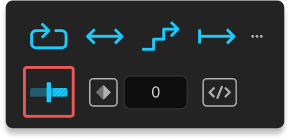
Click to set the direction of the loop applied by the buttons above. Toggle between: Loop In; Loop Out; Loop In + Loop Out.
Keyframe Modifier
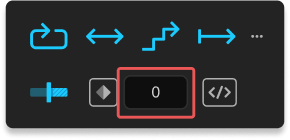
When set to a value greater than zero, a parameter is added to the loop expression to limit the loop to this number of keyframes before the last (or after the first, for a Loop In).
For example, if this value were set to 3, and the property has 10 keyframes, when applying Loop Out, the animation will loop between the 7th and 10th keyframes.

If this value is set to zero, it is ignored and the keyframe modifier is not added to the expression.
Alt/Option-click to reset the value to zero.
Limit Keyframe Modifier

When active, the value set in the Keyframe Modifier field will be modified before being used in the loop expression. It will ensure that the value used is no greater than the highest valid value for a property.
For example, if the Keyframe Modifier value is 10, but the selected property only has five keyframes, this would cause an error. With this toggle active, the Keyframe Modifier value will be adjusted to 4 before being used in the expression.
When inactive, the value set in the Keyframe Modifier field will be used as-is. In some versions of After Effects, this may result in an expression error if this value greater than the highest valid value on a property; in later versions, the animation will simply loop between the first and last keyframes. This might be desirable if you are applying loop expressions to properties that you will later add sufficient keyframes to.
loopOut("cycle", 10);
/* With 5 keyframes, this is invalid and will loop between
   all keyframes, or possibly throw an expression error */
Keep Expressions
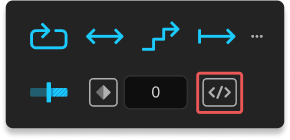
When active, any existing expression on a property will be retained and commented out below the new loop expression.
When inactive, any existing expressions are removed before applying the loop expression.
Information Panel
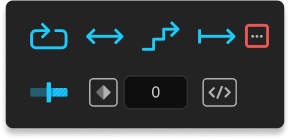
Click to open the Information panel. This panel contains:
- Version details of the script
- Link to support on the aescripts website
- Instructions on how to use Loopy
- Licence registration information
- Option and button to check for script updates
- Licence the script, or deactivate your licence
- Reset the Loopy panel to the default state.