Using MarkerMover with KBar
MarkerMover is configured for use with KBar — simply change the ‘Script function or argument’ value (see screenshot below) to change the function of the KBar button. You will need to relink the script file field to point to the installed MarkerMover.jsxbin file. There are provided icons for each of these functions.
If you are using KBar3, there is a .kbar file included for easy import of the toolbar buttons.
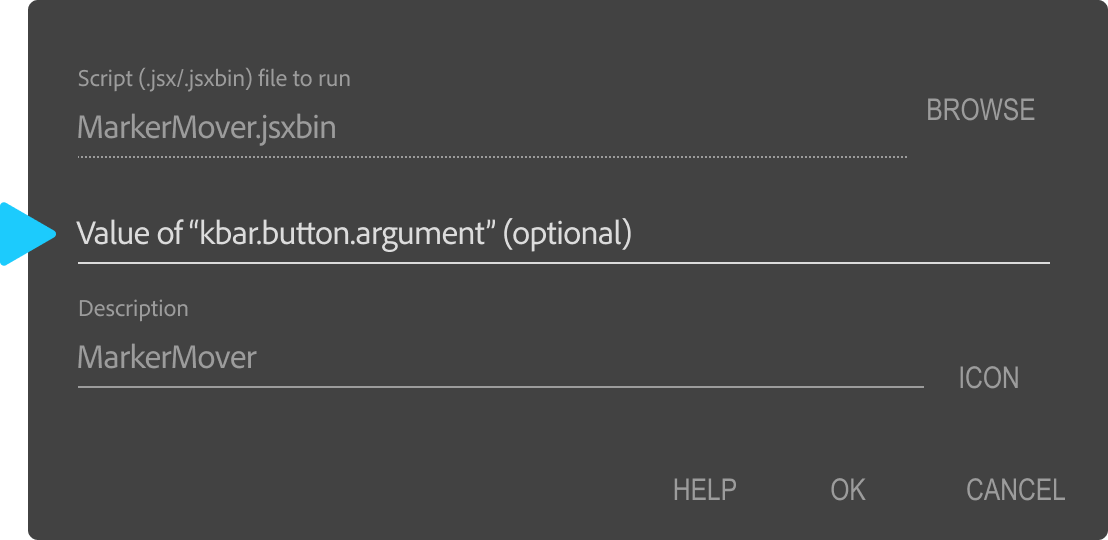
| Script argument | Function | |
|---|---|---|
 |
(None) | Open MarkerMover panel |
 |
move-prompt | Opens a prompt, into which you can type a value. Markers within the work area are moved by this amount. The Time Format, Split Markers and Protected Region Marker toggles all affect this behaviour. |
 |
move | Moves the applicable markers by the last used value. Behaviour is affected as above. |
 |
move-reverse | As above, but it will apply a negative of the last used value. Behaviour is affected as above. |
 |
toggle-time-format | Toggles the time format between frames and seconds. |
 |
toggle-split-markers | Toggles the split markers control. |
|
toggle-protected-markers | Toggles the protected markers control. |
 |
copy | Copy markers within the work area from selected layers (or comp, if no layers are selected). This is the same as clicking the copy button in the script panel. |
 |
cut | As above, but deletes copied markers. |
 |
copy-single | Copy a single marker at the CTI. This is the same as shift-clicking the copy button in the script panel. |
 |
paste | Pastes copied markers to selected layers (or comp, if no layers are selected). This is the same as clicking the paste button in the script panel. |
 |
paste-overwrite | As above, but markers on selected layers (or comp, if no layers are selected) within the work area are deleted before markers are pasted. |
 |
delete | Deletes all markers within the work area from selected layers (or comp, if no layers are selected). |
 |
delete-all | Deletes all markers from selected layers (or comp, if no layers are selected). |
 |
toggle-cti | Toggles the Paste first marker to CTI control. |
 |
workarea-save | Saves the current work area settings. |
 |
workarea-apply | Applies the saved work area settings to the active comp. |
 |
update-markers | Triggers the native Update markers from source function. |
 |
comp-markers | Duplicates all comp markers onto a new 'dummy' layer. If this 'dummy' layer already exists in the comp, then its markers are removed and updated with the current comp markers. |
 |
trigger | Open the Marker Trigger interface. This is the same as clicking the Apply marker trigger expression to selected properties button in the script panel. |
 |
memorybank1-copy memorybank2-copy memorybank3-copy memorybank4-copy memorybank5-copy |
Saves markers in the work area to Memory Banks 1–5. |
 |
memorybank1-copy-single memorybank2-copy-single memorybank3-copy-single memorybank4-copy-single memorybank5-copy-single |
Saves a single marker to Memory Banks 1–5. |
 |
memorybank1-paste memorybank2-paste memorybank3-paste memorybank4-paste memorybank5-paste |
Pastes the marker(s) stored in Memory Banks 1–5. |